
Video Sequence in a Drawable
In our mobile project we decided to make the weapon previews video instead of a static image. The idea was that the artists would draw nice animations, maybe even in 3D, but that didn’t quite work out, and what we got instead were simple looping 1-1.5 second clips at 256×256 resolution. They dropped into the iOS version beautifully, but on Android we had to fight with MediaPlayer and SurfaceView, and even then we ended up with some rough edges — the SurfaceView’s contents didn’t move along with the parent View, there was a noticeable pause before playback started, and so on.
A sensible solution would have been to split the animations into frames and set them up in XML for an AnimationDrawable, but for 15 weapon types that would mean a mess of 5000+ frames at 10-15KB each. So we ended up building our own AnimationDrawable implementation that works with a sprite sheet, along with a reasonably fast method for converting video into that format.
Sprite Sheet
Without overthinking it, we decided to make the sprite sheet horizontal, with no description file. That’s not ideal practice, but for 1-2 second animations it doesn’t really matter.
The source video gets split into sprites via ffmpeg:
ffmpeg -i gun.avi -f image2 gun-%02d.png
If that results in more than 32 frames, we add the -r 25 or -r 20 parameter to reduce the fps. The 32-frame limit comes from the maximum reasonable image width of 8192 pixels. This could be worked around with a more complex sprite layout, but for a 1-1.5 second sequence it’s enough.
This produces a scatter of files like this:
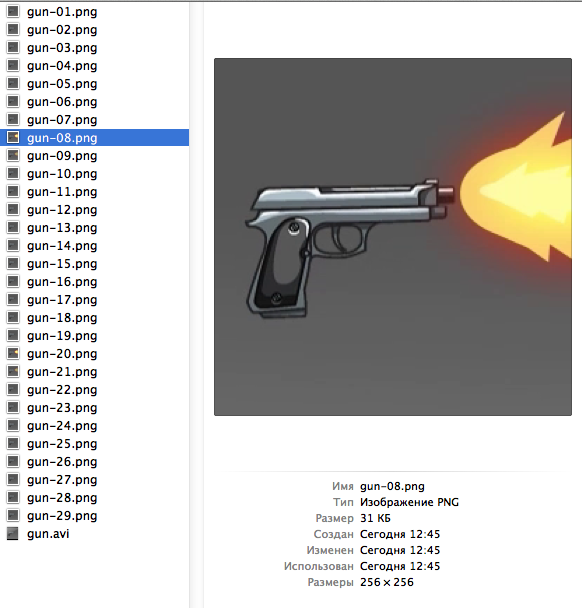
To assemble the sprite sheet I use Zwoptex, but any similar tool would work, or even a homemade script.
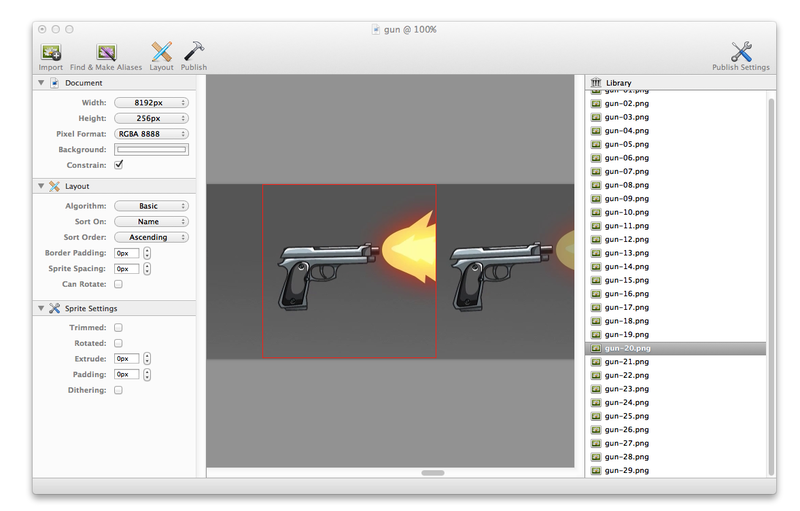
In the pistol example, the resulting PNG file was 257KB at 8192×256 resolution. After cropping to 7424×256 and running it through TinyPNG, it shrank to 101KB with no quality loss. If you want, you can also save it as JPG with a slight quality loss and get it down to 50-70KB. For comparison, the original high-quality .MP4 video takes up roughly the same 100KB. For more complex animations, the PNG can end up 2-3 times bigger than the original video, which honestly isn’t a big deal either.

Our Own AnimationDrawable
In the initial version, we were counting on Bitmap.createBitmap creating not a new image but a subset of the existing one, per its documentation:
Returns an immutable bitmap from the specified subset of the source bitmap.
The constructor loads the image, splits it into frames, and adds them to the AnimationDrawable. In our case the animations are stored in assets so they can be accessed by name, but the code adapts very easily to work with R.drawable.* too.
public class AssetAnimationDrawable extends AnimationDrawable {
	public AssetAnimationDrawable(Context context, String asset, int frames,
			int fps) throws IOException {

		BitmapFactory.Options options = new BitmapFactory.Options();
		options.inPreferredConfig = Config.RGB_565; // A.G.: use 16-bit mode without alpha for animations

		this.bitmap = BitmapFactory.decodeStream(context.getResources()
				.getAssets().open(asset), null, options);

		int width = bitmap.getWidth() / frames;
		int height = bitmap.getHeight();

		int duration = 1000 / fps;		// A.G.: note the little gap cause of integer division.
								// i.e. duration would be 33 for 30fps, meaning 990ms for 30 frames.

		for (int i = 0; i < frames; i++) {
			Bitmap frame = Bitmap.createBitmap(bitmap, i * width, 0, width, height);
			addFrame(new BitmapDrawable(frame), duration);
		}
	}
}
The class is used just like a regular AnimationDrawable:
	AnimationDrawable animation = new AssetAnimationDrawable(getContext(), "movies/gun.jpg", 28, 25);
	animation.setOneShot(false);
	previewImage.setImageDrawable(animation);
	animation.start();
Unfortunately, testing showed that this doesn’t create an immutable reference to the original — it creates a new image for every frame — so this approach turned out to be fairly resource-hungry, even though it works great in many situations.
The next version is noticeably more complex and inherits directly from Drawable. The constructor loads the sprite sheet into a class member, and the draw method renders the current frame. The class also implements the Runnable interface, mirroring how the original AnimationDrawable handles animation.
	@Override
	public void draw(Canvas canvas) {
		canvas.drawBitmap(m_bitmap, m_frameRect, copyBounds(), m_bitmapPaint);
	}


	@Override
	public void run() {
		long tick = SystemClock.uptimeMillis();

		if (tick - m_lastUpdate >= m_duration) {
			m_frame = (int) (m_frame + (tick - m_lastUpdate) / m_duration)
					% m_frames;
			m_lastUpdate = tick; // TODO: time shift for incomplete frames

			m_frameRect = new Rect(m_frame * m_width, 0, (m_frame + 1)
					* m_width, m_height);
			invalidateSelf();
		}

		scheduleSelf(this, tick + m_duration);
	}

	public void start() {
		run();
	}

	public void stop() {
		unscheduleSelf(this);
	}

	public void recycle() {
		stop();
		if (m_bitmap != null && !m_bitmap.isRecycled())
			m_bitmap.recycle();
	}
The run() method calculates the current frame and schedules the next task. The accuracy of this code isn’t perfect, because it doesn’t account for fractional frame time (for example, when tick — m_lastUpdate ends up 1ms short of duration), but that wasn’t relevant for our purposes, and anyone interested is welcome to improve the class further.
Full code on paste2: paste2.org/p/2240487
I want to draw attention to the recycle() method, which clears m_bitmap. In most cases it isn’t needed, but in our case a user can rapidly click through purchases in the store, which creates several AssetAnimationDrawable instances and can run out of memory, so when a new animation is created we free the resources of the old one.
Pros and Cons
Of course, the approach is far from perfect and won’t suit large animations or frames that differ substantially from each other, but for our needs it worked great, without noticeably bloating the project or causing visual bugs.
Cons:
- by inheriting from Drawable we lose some AnimationDrawable features, such as setOneShot
- an 8192x256x32bpp image takes up 8MB of memory
- you need to store the frame count and fps for each animation somewhere
- custom code for standard solutions hurts code readability and makes maintenance harder
- compressing sprites as JPG gives worse quality at roughly the same size as the original video. Compressing as PNG gives the same quality at 1-3 times the size
Pros:
- no bugs with SurfaceView or MediaPlayer, no stutter on load
- in RGB_565 mode, an 8192×256 image takes up 4MB of memory, and if needed you can set options.inSampleSize = 2 or higher in the constructor to shrink the dimensions and memory footprint (a value of 2 gives 0.5Mb of memory and a 4096×128 resolution)
- you can scale the sprite sheet to any size in your favorite editor. the only rule is that the width must stay a multiple of the frame count
- you can adjust the playback speed via fps without touching the finished files
- it’s entirely feasible to play back animation with transparency in ARGB_8888 or ARGB_4444 modes
- the animation can be stopped and its resources freed at any moment
P.S.
If anyone’s interested, I could write a separate post about our experience integrating short videos into the GUI using MonoTouch for the iOS project. There’s relatively little documentation on Mono, and plenty of gotchas.
Originally published on Habr, 2012-09-19.