
Using JPEG with Transparency
 Of course, the JPEG format doesn’t support transparency, but the idea of using JPEG instead of PNG for transparent textures has been floating around for a while. Fellow developer PaulZi recently suggested using SVG for HTML, storing both the image and the mask inside it. Jim Studt suggests using EXIF fields in the JPEG to store the mask, and rendering it on the web page with Canvas.
 Both methods are relatively complex to use, and both are aimed at the web, so I settled on the simplest option: store a lossy JPEG for RGB and a lossless PNG mask separately, and combine them at the point where the UIImage is created in the app. I should mention up front that I’m writing this in MonoTouch, so the code below is in C#, though in Objective-C it’s done almost exactly the same way, syntax aside.
Splitting the channels
For the split I use the ImageMagick command-line tools.
This command splits off the alpha channel:
convert file.png -channel Alpha -separate file.mask.png
The next command creates a JPEG file, discarding the transparency data. Notably, some other tools (Photoshop included) add some solid-color backing when converting a PNG to JPEG and only then save to RGB, which produces a picture that looks nice but is technically wrong, with pre-multiplied alpha.
convert file.png -quality 90 -alpha off file.jpg
The quality of the resulting file is controlled by the quality 90 parameter. 90% quality for JPEG is higher than what Apple uses for app and movie screenshots. I imagine everyone can tune this value to their own taste.
Optimization
The mask comes out as an 8-bit grayscale PNG with no transparency. A format like that compresses beautifully with optipng or through the www.tinypng.org website.
The JPEG side is more interesting. You could just stick to setting the quality, but recently I came across a wonderful utility called jpegrescan, by Loren Merritt, one of the developers of ffmpeg and the x264 encoder (there’s some suspicion that he’s actually an alien or a cybernetic brain in disguise).
The tool takes an unusual approach: it tries different coefficients for progressive compression and picks the most optimal one. The gain is anywhere from 5 to 15% with identical image quality. There’s no dedicated page for the utility, just a discussion thread and the perl source itself: pastebin.com/f78dbc4bc
So I wouldn’t have to type these commands by hand every time, I wrote a small bash script:
#!/bin/bash
basefile=${1##*/}
maskfile="${basefile%.*}.mask.png"
jpegfile="${basefile%.*}.jpg"
convert $1 -channel Alpha -separate $maskfile
convert $1 -quality 90 -alpha off $jpegfile
optipng $maskfile
jpegrescan $jpegfile $jpegfile
Here’s the result of running the script:
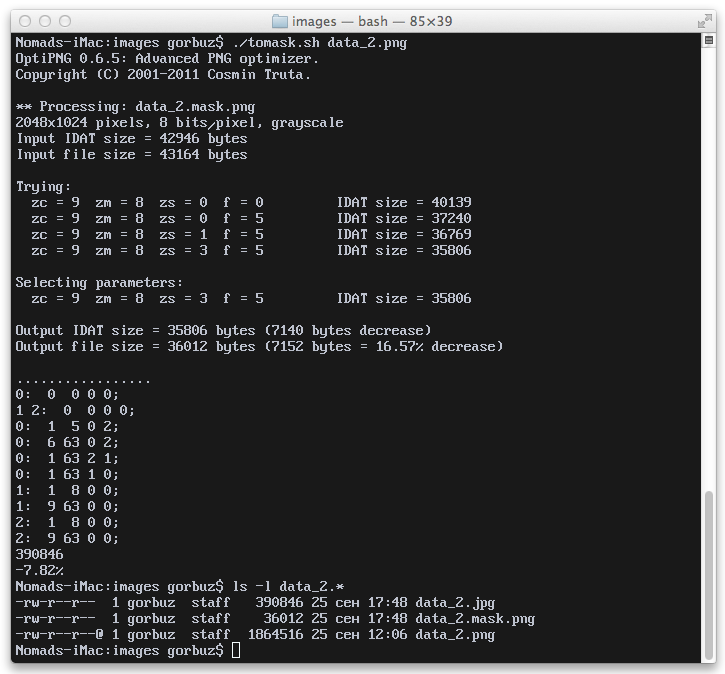
In my case, a 1.8MB file turned into two files of 380KB and 35KB.
Gluing it back together
The actual combining is very simple – load the two images into UIImage, then build a CGImage from them using the WithMask method (in Objective-C that’s CGImageRef and initWithMask respectively), and then wrap the result back into a new UIImage.
		UIImage result;
			using(UIImage uiimage = UIImage.FromFile(file))
			using(UIImage mask = UIImage.FromFile(maskFile))
			{
				CGImage image = uiimage.CGImage;
				image = image.WithMask(mask.CGImage);
				result = UIImage.FromImage(image, uiimage.CurrentScale, uiimage.Orientation);
			}
In the real project I did it a bit more carefully and check for the presence of a *.mask.png file, falling back to a plain UIImage.FromFile() if it’s missing.
Payoff

Visually, the game hasn’t changed at all. The delay from loading and stitching the textures isn’t noticeable to the eye, so I didn’t even bother measuring it. The project itself shrank by 6 (!!) megabytes, both as an .ipa and in iTunes and on the device.
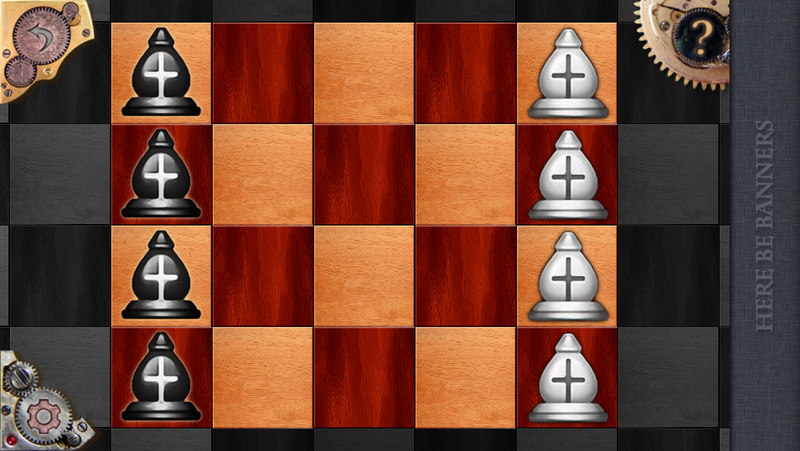
A screenshot from the game in PNG. No artifacts or compression/transparency issues visible whatsoever.
Having twice as many image files in the project folder is a bit annoying, but that’s something you can live with. The code changes are minimal. For interface graphics this method isn’t ideal, since you have to assign the UIImage manually rather than loading it from a NIB/XIB, but it works perfectly well for your own controls or textures. Even if you save the JPEG at 100% quality, the resulting files can end up smaller than the original lossless PNG.
P.S. ImageMagick and optipng are installed from ports (MacPorts/Fink/Brew) and are called the same there. The jpegrescan script can be downloaded from pastebin and needs the jpeg port.
Originally published on Habr, 2012-09-25.