
Screen Recording on Mac OS X with Open-Source Tools
 Sometimes you need to record a demo of your app in action, but you don’t have the right tools on hand.
 In my case, I needed to record gameplay footage from the iPhone and Android simulators. The programmer in me immediately suggested writing a pile of code — for iOS/Android as well as for the Mac itself, dumping frames via OpenGL, and so on. After suppressing that urge, I decided to look for ready-made solutions instead, and then write this article up as a reference.
Prelude
Searching the forums showed that people with similar needs fall into two categories: those who buy specialized capture-capable software (QuickTime Pro, etc.) and those who use cracked/trial/beta versions of the same programs. Digging a bit deeper, I learned that this problem doesn’t exist at all in the Linux/Unix world, ever since the x11grab module was added to ffmpeg. This module captures the X application buffer, and ffmpeg then compresses the video into an intermediate format (qtrle, raw, x264 lossless, etc.). Mac also has an X server, but only programs ported from Linux and not adapted for Cocoa output through it. That became the starting point for my experiments.
Tools: ffmpeg + x11grab + Xvfb

MacPorts’ ffmpeg doesn’t include the x11grab module at all. Building it entirely from source didn’t work on the first try, so I decided to patch the port file for ffmpeg-devel:
/opt/local/var/macports/sources/rsync.macports.org/release/tarballs/ports/multimedia/ffmpeg-devel/Portfile
There, in the nonfree configuration, I added the lines –enable-x11grab and –enable-shared to enable x11grab.
Getting ahead of myself, I’ll say that this method turned out to have a flaw, so I’m not posting the patched Portfile — I’m describing it here only for reference.
When an X program is displayed in the default session (display) :0.0, video recording gives a low frame rate, mostly because of the screen size (2560×1440 on the iMac), and probably also because of graphics rendering, so I decided to redirect programs to a virtual display with a smaller resolution. This is done via the Xvfb project, which installed from the ports without any issues.
It’s launched quite simply from the terminal (with some margin on the size):
Xvfb :1 -screen 0 1024x800x15 -shmem
Connecting ffmpeg to this virtual display is just as simple:
ffmpeg -r 30 -s 1024x768 -f x11grab -i :1.0+0,20 -vcodec qtrle target.mov
At this point I ran into a Shared Memory overflow error — for some reason OS X sets this to a ridiculously low value of 4mb. Temporarily increasing its size is described both in Apple’s recommendations for servers and in other sources:
   sudo sysctl -w kern.sysv.shmmax=67108864

   sudo sysctl -w kern.sysv.shmall=67108864
Recording a VirtualBox Session
The next step was to get something useful out through the X server. My first thought was to build an X version of VirtualBox and then display literally anything from a virtual machine there, but VirtualBox for Mac migrated to Cocoa a long time ago, so that was a dead end. The second sensible idea was to connect to the virtual machine over RDP and record the rdesktop session, since it does run under X. Enabling RDP in VirtualBox is fairly simple, but it requires installing the Extension Pack from the official site.
Connecting rdesktop with output through display :0.1
DISPLAY=:1.0 rdesktop -xl localhost
After these steps, ffmpeg starts successfully recording video to a .mov file. In my case, an Android x86 build happened to be conveniently at hand:
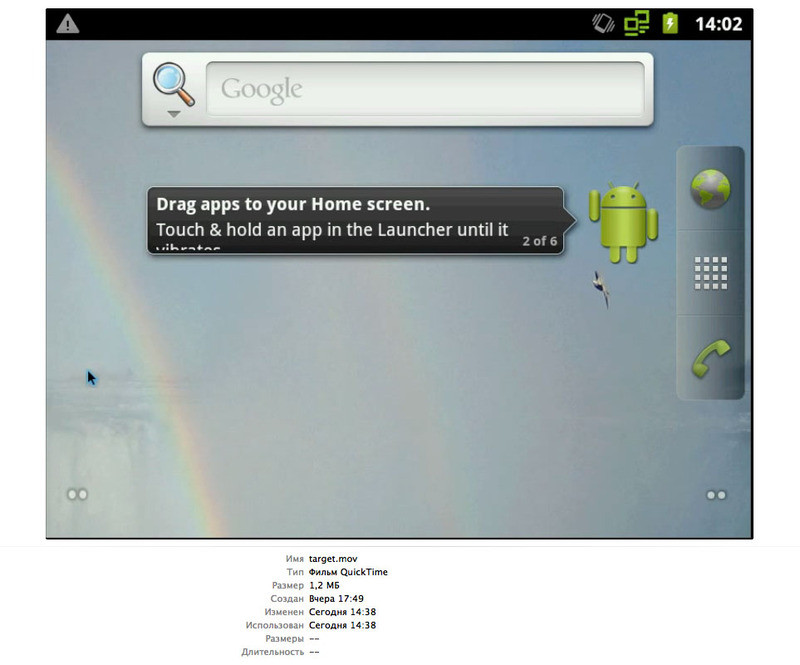
Unfortunately, the video comes out rather choppy — RDP compression takes its toll, so this isn’t a great way to capture animation.
As a next step I decided to switch from RDP to VNC. VirtualBox has a built-in VNC server, but not in the public builds — only in versions built from ports or from source. I didn’t have to do anything special with the port; after building the virtualbox port I got version 4.1.14, which works well enough.
The only annoying part was that VNC isn’t available through the UI, only when launching in headless mode:
VBoxHeadless -startvm 'Android x86' -v on --vnc
You have to control this mode either through a second VNC session or again via RDP, which isn’t very convenient but is tolerable overall. To capture the VNC stream I used vncviewer redirected to the virtual X display:
vncviewer localhost -ViewOnly -display :1.0 -PreferredEncoding raw -FullColor
The result of all this exploration was a 5-minute video at a solid 30 fps and 1024×768 resolution:
(apologies in advance for the content quality — I’m not exactly a professional gamer)
If you look closely, you can occasionally spot pauses of a few seconds. Unfortunately I never managed to solve that problem, and the approach itself turned out fairly cumbersome. For a basic demo of an Android game this is good enough overall, so I moved on to the next task — recording video from the iPhone simulator.
Capturing VNC for the Whole Screen

OS X has built-in remote access that works over two protocols simultaneously — ARD and VNC. Before Lion 10.7, you could enable Screen Sharing in System Preferences and connect to the current session with any VNC client. Starting with 10.7, things changed significantly: every compression type except ZRLE was dropped, far from every client can connect, and after connecting you see a grey login screen — you only reach the actual session after entering the user’s password. That’s great for administrators, but for my purposes it was nothing but an obstacle. The vncviewer program (aka RealVNC) can connect to OS X in its recent versions, but it can’t enter the user password, so that path was also a dead end.
As an alternative, I took the free VNC server from TestPlant (also known as osxvnc, also known as Vine). The 3.0 version from SourceForge is outdated, so you need to build a newer one from source or get it from the TestPlant site.
A minor bug in this server is that the client occasionally drops with an «unknown message type 131» error. It’s fixed by restarting the server.
With the ffmpeg+x11grab+Xvfb and vncviewer combo already up and running, I managed to record a full-screen video of the current OS X session with the iPhone simulator running:
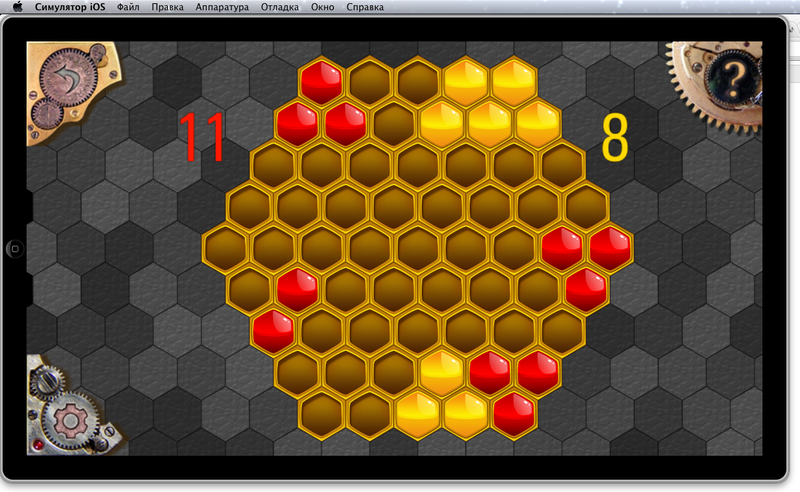
I deliberately picked a virtual buffer size smaller than the screen resolution, to capture the top-left corner. The result came out reasonably decent, but unfortunately with a low FPS — the in-game animation was noticeably choppy. What’s more, the pauses that were fairly rare with the VirtualBox setup became much more pronounced.
At this point I ran several experiments — rebuilding the VNC server and client from source, setting the minimum screen resolution — but never got a good result. After a few hours it became clear that the server itself was delivering frames with some delay. Digging through the code revealed that the server deliberately pauses between screen updates:
        /* OK, now, to save bandwidth, wait a little while for more updates to come along. */
        /* REDSTONE - Lets send it right away if no rfbDeferUpdateTime */
        if (rfbDeferUpdateTime > 0 && !cl->immediateUpdate && !cl->needNewScreenSize) {
            pthread_mutex_unlock(&cl->updateMutex);
            usleep(rfbDeferUpdateTime * 1000);
            pthread_mutex_lock(&cl->updateMutex);
        }
It turned out that the rfbDeferUpdateTime variable defaults to 40ms, but it’s fully configurable and can be set from the command line. Vine Server itself has a dedicated field for this:
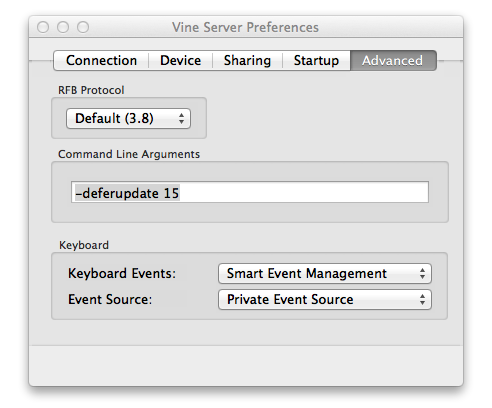
I set it to a conservative 15, which gives a maximum frame rate of 66 fps. That got rid of the lag, but noticeable pauses still remained in the video. In theory you could cut those out of the footage and assemble something acceptable, but I wanted a more universal solution.
Ace Up the Sleeve: vnc2flv
Now I had an excellent-quality VNC video stream, and all that was left was to record it to a file. I again suppressed the deeply programmer urge to write my own dumper, and dug up the vnc2swf project on the internet, and then its successor, vnc2flv. My skepticism toward a Python-based grabber vanished after the first results — the program records the video stream in lossless quality at WQHD resolution with 15+ fps! I run it without the hassle of Xvfb, connecting directly to the VNC server:
flvrec.py -r 30 127.0.0.1
To boost the fps, it’s enough to lower the resolution to 1280×720. Interestingly, you can restart Vine VNC at that point, it’ll pick up the current screen resolution, and then you can switch back to the native resolution and start recording.
Installing vnc2flv is very simple and is described on its site; there are no real gotchas here.
The resulting video can be processed in your favorite video editor, trimmed, and converted to the format you need. I use VirtualDub running under wine, but that’s just a matter of habit.
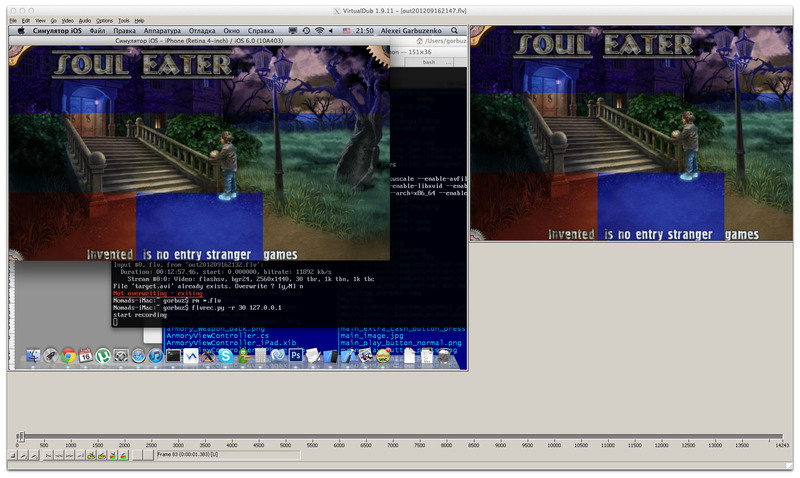
Here’s the result of this whole saga:
The video is quite sharp, with no jitter or lag. The animation is recorded properly. As far as I’m concerned, this can be used to record literally anything from a Mac OS screen. The only thing missing is the cursor, but that’s easy enough to live with.
Afterword: Dead Ends
I’ll list here the dead ends and pitfalls I ran into, in case someone else is looking for their own method.
VLC Player — as of OS X 10.7, can’t record screen video
CaptureMe — crashes, records an empty video
SIMBL plugin for iPhone Simulator — requires patching the simulator version in code and rebuilding, doesn’t record iPad video, and just plain didn’t work for me at all
osxvnc 3.0 from SourceForge — crashes on 10.7
RealVNC Server — requires a license key
VirtualBox, video recording mode — dead for 3 years, unsupported and doesn’t work
ffmpeg+x11grab — promising and flexible, but produces incurable pauses in the video. Linking to the blog where I picked up this idea.
Apple HTTP Live Streaming — doesn’t include any tools for streaming
Originally published on Habr, 2012-09-17.