
How to Disable iAD Without Changing Your Code
In iOS apps it’s pretty natural to use Apple’s own ad network, iAD. The complications start when you want to run a “no ads this week” promotion, or disable it permanently so it stops bothering users, or when iAD is running alongside AdMob and iAD impressions are cutting into AdMob’s revenue while not bringing in anything substantial themselves.
In my case, the picture looked like this:
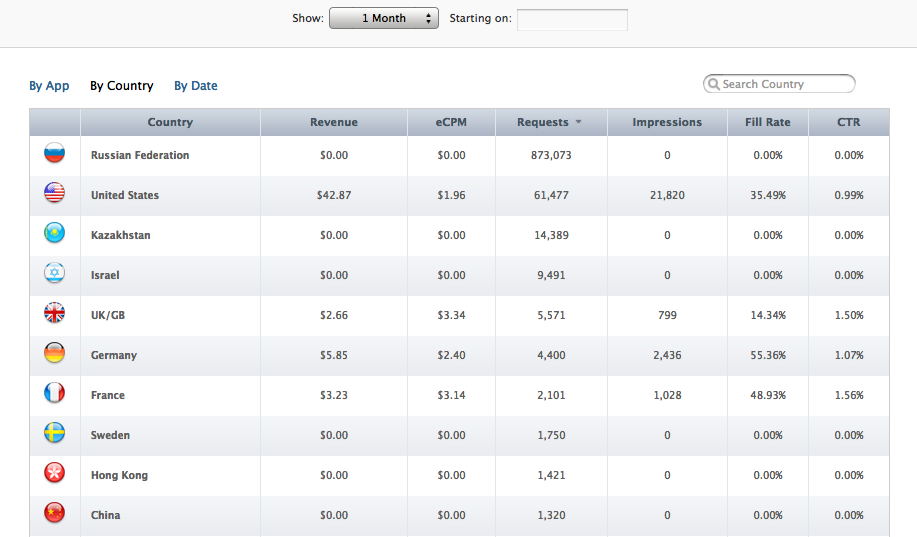
In short, this table means that our target audience (our home market) never saw a single ad, while over a month the impressions in the US and Europe together brought in a bit under $50. With a fill rate and eCPM like that, around $2, it’s better to drop iAD entirely. Here’s what Apple says about disabling ads:
iTunes Connect Developer Guide page 129:
Once your app has been submitted, iAd cannot be disabled. To remove ads from an app, you will need to submit a new binary with ad functionality removed
Literally, that means you need to upload a new build without ads. Great approach, except approval for a new version can take weeks.
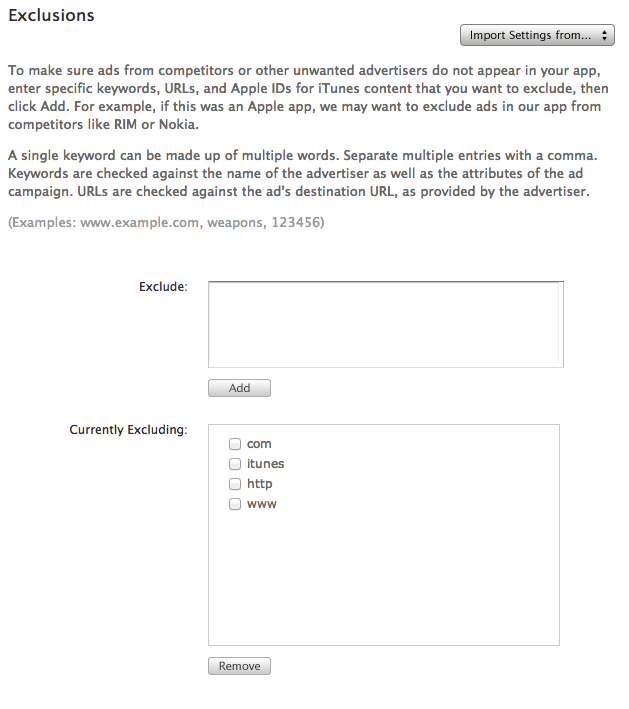
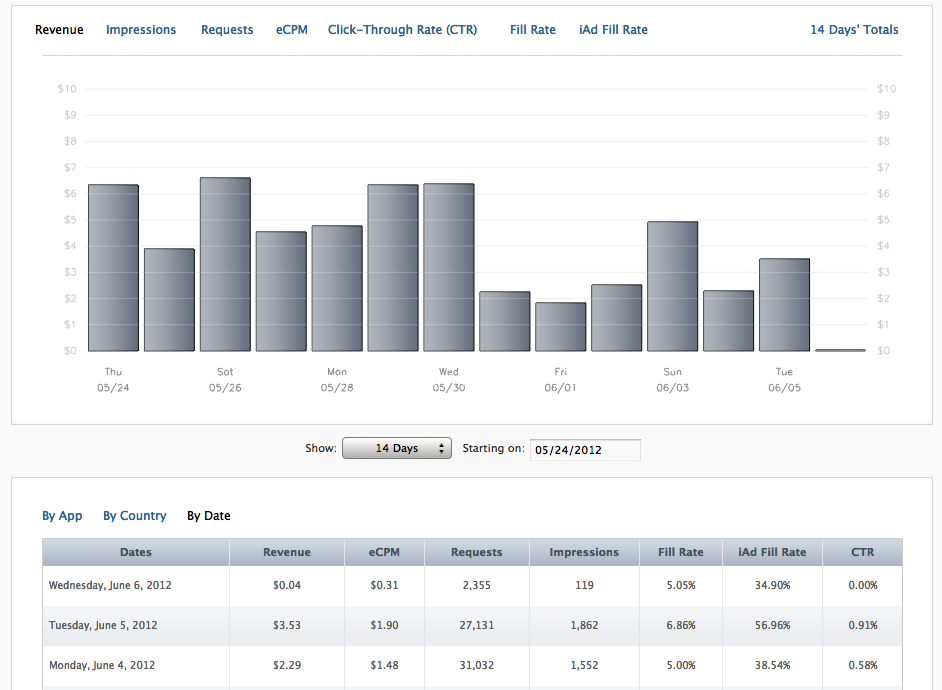
The whole trick is right there on the screenshot. Filtering on keywords like www, http, com, itunes should catch 90-95% of ad banners and links. Coverage isn’t 100%, some banners can slip through, but the result becomes noticeable literally the very next day:
The method might not be entirely proper, but either way it’s a good stopgap while an updated version is going through review.
Originally published 2012-06-07.